Code Cart Checklist User
Manual
Purpose
The Crash Cart Check App is an iPad-friendly web application for
completing, reviewing, and following up on VA Loma Linda code cart
checks. It replaces the paper monthly Code Cart Check form with one
digital submission for each cart check occurrence.
Use this manual for new-user training, refresher training, and online
help.
What the App Does
The app helps staff:
- Start a daily code cart check for a selected date, unit, cart, and
shift.
- Complete the checklist fields derived from the VA Loma Linda paper
form.
- Save progress before submitting.
- Submit the completed check.
- View reference instructions in tabs instead of scrolling through one
long document.
- Defer a check when the cart is in use for a code event.
- Document variance information and support follow-up correction.
- Review completion status on the dashboard.
- Support monthly supervisor review and signoff separately from daily
nurse submissions.
Important Concepts
One submission per cart check
The paper form represents a full month. In the app, each submitted
check represents one cart check occurrence. Monthly reporting and
supervisor signoff are handled separately.
Form versions
Each check uses the active checklist form version at the time the
check is started. Historical submitted checks keep the form version used
at submission time.
Saved progress
Use Save Progress while working. Completed checklist
data is saved through the backend. Do not rely on browser storage for
completed clinical data.
Submitted checks
After a check is submitted, checklist responses are intended to
remain unchanged. Corrections and variance follow-up are documented
through separate workflows.
Authenticated Users
The application uses the authenticated PIV identity and
application-assigned roles.
- Nurse users can complete code cart checks and use
references.
- Charge nurse / supervisor users can access the
dashboard and review status.
- Admin users can access admin screens for forms,
carts, units, variance follow-up, and monthly review.
Navigation
The left navigation includes:
- Dashboard: completion status and KPI review.
- Code Cart Checklist: bedside nurse checklist
workflow.
- References: tabbed instruction content.
- Admin: administrative workflows, visible only to
authenticated administrators.
Use the collapse icon at the top of the left navigation to give the
checklist more workspace. The app also collapses the navigation
automatically after a new check is started.
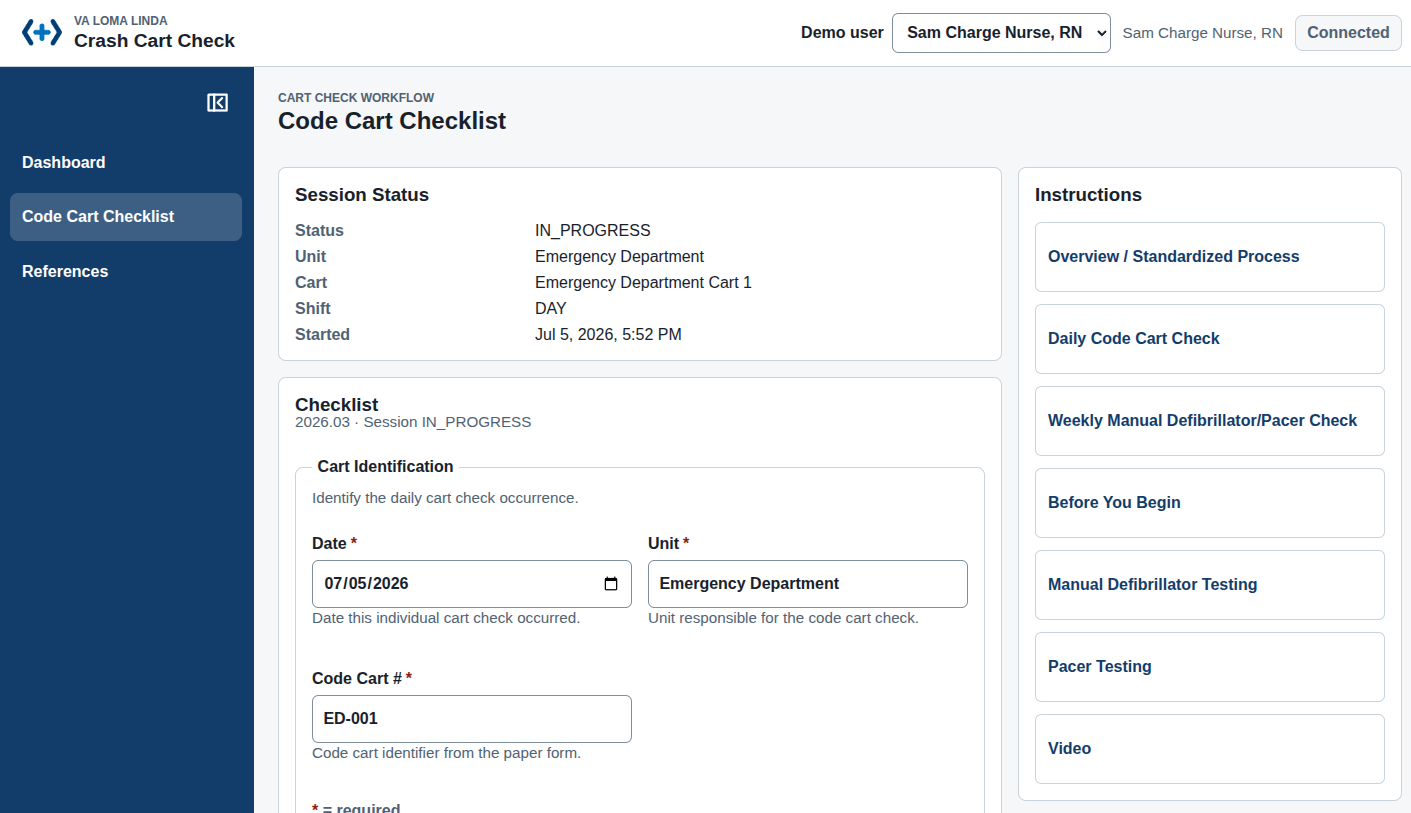
Start a Code Cart Check
- Open Code Cart Checklist.
- Confirm your authenticated name and role appear in the header.
- Select the Date. The default is today.
- Select the Unit.
- Select the Code cart assigned to that unit.
- Select the Shift.
- Confirm or enter the completing nurse name and identifier if
shown.
- Review the cart status message.
- Select Start New Check.
If the cart has an active code-out event, the app indicates that the
cart is unavailable or deferred.
Complete the Checklist
The digital checklist is grouped to match the paper form:
- Cart Identification
- Locks and Expiration Dates
- External Supplies - Top
- Inspect Unit/Paddles
- External Supplies - Right Side and Front
- Defibrillator/Pacer
- Completion and Variance
Fields marked with * are required. Each section with
required fields includes the note:
* = required
Complete each applicable field before submitting.
Checklist Field Guidance
Cart Identification
Confirm the date, unit, and code cart number for the check.
Locks and Expiration Dates
Record:
- Code Cart Lock # - Top of Cart.
- Code Cart Lock # - Front of Cart.
- Intubation Tray Lock #.
- Intubation Tray Expiration Date.
- Pharmacy Expiration Date.
- Cart Expiration Date.
External Supplies - Top
Record:
- Glucometer barcode.
- Defib pads expiration date.
Inspect Unit/Paddles
Verify that the defibrillator unit and paddles are free of:
- Foreign substances.
- Damage or cracks.
External Supplies -
Right Side and Front
Verify:
- Suction machine/tubing.
- Bag/mask unit/airway.
- End tidal CO2 connector.
- Full oxygen greater than 1500 PSI and high-flow regulator
attached.
- Backboard.
- Watch functional with correct time.
Oxygen note: If O2 is less than 1500 PSI, notify Distribution at
x2172. The oxygen tank must have a high-flow regulator attached.
Defibrillator/Pacer
For Daily Self Check Passed, verify the green
self-check mark on the Zoll R-Series defibrillator.
For Weekly Manual Check, enter the date of the
weekly manual defibrillator/pacer check. Use the References section for
detailed testing steps.
Completion and Variance
Enter the required completion/signature name.
For Variance Identified:
- Select No when no issue was found.
- Select Yes when a concern or variance was
identified.
- Enter a variance summary when prompted.
Automatic Variance Guardrail
Some checklist items are safety or readiness checks. If one of these
items does not pass, the app automatically sets Variance
Identified to Yes.
Examples include:
- Suction machine/tubing not present or not ready.
- Bag/mask unit/airway supplies not present.
- End tidal CO2 connector not present.
- Oxygen not greater than 1500 PSI or high-flow regulator not
attached.
- Backboard not present.
- Watch not functional or not showing the correct time.
- Defibrillator unit/paddles not free of foreign substances.
- Defibrillator unit/paddles damaged or cracked.
- Daily self-check did not pass.
When the app automatically identifies a variance:
- Variance Identified changes to
Yes.
- A warning message explains which checklist item caused the
variance.
- The Variance Identified field is temporarily locked
while the failed checklist item remains unresolved.
- A Variance Summary is required before
submission.
If the failed checklist item is corrected before submission, update
the original checklist answer. After all variance-triggering items are
corrected, the variance field can be changed if appropriate. When in
doubt, leave Variance Identified as
Yes and document what happened in the variance
summary.
Save Progress
Use Save Progress to save an in-progress checklist
without submitting it.
Saved progress is useful when:
- You need to step away from the cart.
- You need to confirm a value.
- The cart becomes unavailable during a code event.
If you navigate away with unsaved changes, the app warns before
leaving.
Submit a Checklist
- Complete all required fields.
- Review any warnings or help text.
- Select Submit Check.
- If required fields are missing, the app shows validation errors next
to the correct fields.
- Correct the errors and submit again.
- After successful submission, the confirmation screen shows submitted
status, cart, unit, shift, completing nurse, and submitted
timestamp.
Validation Errors
When a field needs attention:
- An error message appears beside the field.
- The field is marked invalid for assistive technology.
- The route-level error summary explains that the form needs
attention.
Correct the field and submit again.
References
Open References for tabbed instructions. The nurse
should not need to scroll through one long instruction document.
Reference tabs include:
- Overview / Standardized Process
- Daily Code Cart Check
- Weekly Manual Defibrillator/Pacer Check
- Before You Begin
- Manual Defibrillator Testing
- Pacer Testing
- Video
Use Daily Code Cart Check for daily self-check
guidance.
Use Weekly Manual Defibrillator/Pacer Check,
Manual Defibrillator Testing, and Pacer
Testing for Zoll R-Series testing guidance.
The video tab provides a link placeholder. The app does not embed
third-party video content.
Code-Out Event Workflow
Use the code-out controls when a cart is in use for a code event.
- Start or open the cart check session.
- Select Mark Cart In Use when the cart is being used
for a code event.
- Add code-out notes if needed.
- Select Defer Check to defer the current check.
- After the code event is resolved, select Resolve Code
Event.
- Select Resume Check to continue the cart
check.
The dashboard can show a cart as deferred due to a code event.
Variance Follow-Up
If a variance is identified during checklist submission,
administrators or managers can complete follow-up from Admin
> Variance Follow-Up.
Variance follow-up supports the second page of the paper form:
- Date.
- Time.
- Concern/Variance.
- Follow-up.
- Signature/display name indicating correction.
To mark a variance corrected:
- Open Admin > Variance Follow-Up.
- Filter by date, unit, cart, or status if needed.
- Select the variance row.
- Review the variance detail.
- Enter follow-up notes.
- Enter the correction signature/display name.
- Select Mark Corrected.
Dashboard
Use Dashboard to review completion status across
units, carts, and shifts.
Dashboard tools include:
- Date range selector.
- Unit filter.
- Code cart filter.
- Shift filter.
- Quick filter for overdue, missing, or variance-related checks.
- Refresh button.
- KPI cards.
- Checklists Completed by Date chart.
- Table equivalent for the chart.
- Status by unit/cart/shift table.
Status values display in readable text, such as:
NOT STARTEDIN PROGRESSSUBMITTEDDEFERRED CODE EVENTOVERDUE
Status colors are supplemental only. Always read the status text.
Monthly Review
Monthly review is separate from individual nurse submissions.
Use Admin > Monthly Review to:
- Select month and year.
- Select unit and cart.
- Review expected and completed checks.
- Identify missing days or shifts.
- Review open variances.
- Enter supervisor/designee name.
- Sign monthly review.
This replaces the monthly supervisor/manager signature concept from
the paper form.
Admin Screens
Admin users can manage:
- Form versions.
- Reference content.
- Code carts.
- Hospital units.
- Variance follow-up.
- Monthly review.
Active form versions should not be edited directly. Create or edit a
draft, then activate it centrally. Historical submissions retain their
original form version.
Accessibility Tips
- Use the Skip to main content link to bypass
repeated navigation.
- Use Tab and Shift+Tab to move between controls.
- Use Enter or Space to activate buttons.
- Reference tabs support keyboard navigation with arrow keys, Home,
and End.
- Required fields are marked with
* and with programmatic
required metadata.
- Validation errors are shown beside fields and associated with the
relevant input.
- Tables include headings and captions for screen readers.
- The app is designed for iPad-sized touch targets.
Troubleshooting
I do not see Dashboard or Admin.
Your authenticated account may not have the required application
role or unit assignment. Contact an administrator if access is
incorrect.
The cart list is empty.
Confirm that a unit is selected. Code carts are filtered by unit.
The cart is unavailable.
The cart may have an active code-out event. Resolve the code event
before starting or resuming the check.
Submit shows required-field errors.
Complete all fields marked with *. Errors appear beside
the fields that need attention.
Variance Identified changed to Yes by itself.
One or more checklist items did not pass. Review the warning text
near Variance Identified, correct the checklist item if
possible, and enter a variance summary if the variance remains.
Variance Identified is locked.
The field is locked while a variance-triggering checklist item still
has a failing answer. Correct the original checklist item first, or
leave the variance as Yes and document the issue in the
variance summary.
Training Checklist
Before using the app independently, a new user should be able to:
- Confirm the correct authenticated identity and application role.
- Start a cart check for a selected date, unit, cart, and shift.
- Complete required checklist fields.
- Use References to find Daily Code Cart Check guidance.
- Use References to find Weekly Manual Defibrillator/Pacer Check
guidance.
- Save progress.
- Submit a completed check.
- Explain why the app may automatically set Variance
Identified to Yes.
- Explain what to do when a variance is identified.
- Explain what to do when the cart is in use for a code event.
- Use Dashboard to confirm check status, if assigned a dashboard
role.
Current Demo Limitations
The local demo does not include:
- Production VA PKI trust material and final identity governance.
- Barcode scanning.
- Approved offline checklist submission or sync.
Use this manual as workflow guidance for the current demo and as a
foundation for production training material.